NSES CS
  • Kindergarten
  • First
  • Second
  • Third
  • Fourth
  • Fifth
  • Typing
  • Free Time
  • Wolf Tech Team
  • Kindergarten
  • First
  • Second
  • Third
  • Fourth
  • Fifth
  • Typing
  • Free Time
  • Wolf Tech Team
Search

WELCOME 2ND GRADE WOLVES!!

Picture
Digital Citizenship

Digital Citizenship: Be Internet Kind

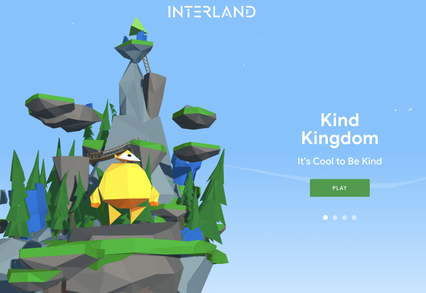
Activity - Kind Kingdom

​​Vibes of all kinds are contagious, for better or for worse. In the sunniest corner of town, aggressors are running amok, spreading negativity everywhere. Block and report the aggressors to stop their takeover and be kind to other Internauts to restore the peaceful nature of this land.

​Click the picture below to start.
Picture

Tips (click image to enlarge)

Picture

Post-Game Questions to Ponder

  • What scenario in Kind Kingdom do you relate to most and why?
  • Describe a time when youʼve taken action to spread kindness to others online.
  • In what situation would it be appropriate to block someone online?
  • In what situation would it be appropriate to report someoneʼs behavior?
  • Why do you think the character in Kind Kingdom is called an aggressor?
  • Describe this characterʼs qualities and how their actions affect the game.
  • ​Did playing Kind Kingdom change the way you plan to behave toward others? If so, how?

Mousing Skills

Mouse Skills Practice

Picture
1.  Touch the squirrel.  Click this Link
2.  Left click the squirrel.  Click this Link
3.  Right click the squirrel.  Click this Link
4.  Double click the squirrel.  Click this Link
5.  Scroll with the wheel.  Click this Link
6.  Drag and drop the squirrel.  Click this Link
Do these after the ones above!  You can do them in any order.
Picture
Picture
Picture
Picture
Picture
Picture
ScratchJr
billygoatsfluff-start.sjr
File Size: 114 kb
File Type: sjr
Download File

Learn Programming with Scratch
Picture
Pong Game
Week 1
  1. Download Scratch from Google Play store.
  2. Open Scratch.
  3. Follow teacher instructions.
Week 2
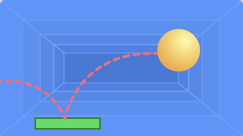
1. Click the picture below to download the starter file to your computer...
Picture
2. Open the Scratch app.
3. Click Import at the top, and open the file.
Week 3
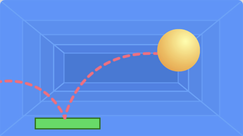
1. Click the picture below to download the starter file to your computer...
Picture
2. Open the Scratch app.
3. Click Import at the top and open the file.
Space Lines
1. Click the picture below to download the starter file to your computer...
Picture
2. Open the Scratch app.
3. Click Import at the top, and open the file.
Turtle Drawing
Click the Download link below to save the starter file to your computer.
turtle_drawing.sb3
File Size: 75 kb
File Type: sb3
Download File

Picture
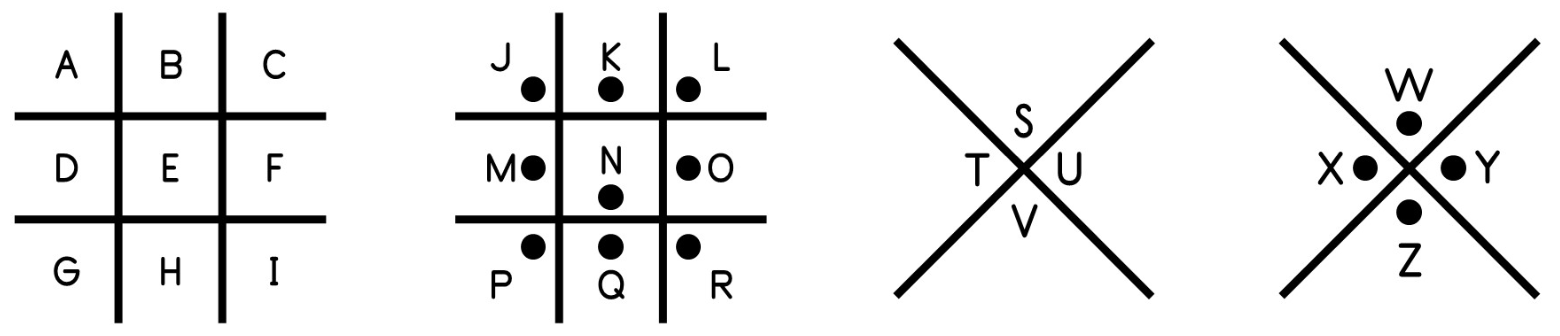
Cryptography
Picture

Picture

Picture
© 2018-2024 Open Source Kids
  • Kindergarten
  • First
  • Second
  • Third
  • Fourth
  • Fifth
  • Typing
  • Free Time
  • Wolf Tech Team